In today’s AI-saturated landscape, protecting sensitive information has become increasingly important. Deploying artificial intelligence on your personal hardware offers a compelling alternative to third-party cloud services when data privacy is a concern. This guide walks you through the process of installing and running open source Large Language Models (LLMs) on your own computer.

What is Ollama?
Ollama is a platform that makes it easy to run, manage, and interact with open-source large language models (LLMs) locally on your machine. Its main purposes are:
- Model management: Ollama handles downloading, updating, and organizing LLMs. You don’t need to manually search for model weights or worry about compatibility issues.
- Simplified deployment: Instead of setting up complex environments (like installing Python libraries, configuring GPUs, or setting up Docker containers), Ollama provides a smooth, ready-to-use runtime.
- Local inference: You can run LLMs entirely on your computer, meaning no data leaves your device, which is great for privacy and offline usage.
- Customizable: You can tweak models, create custom model variants (“modelfiles”), and even fine-tune behaviors easily.
It supports models like LLaMA3.3, Mistral, Deepseek-v3 and others, with optimizations to make them run efficiently even on typical consumer hardware.
View the models supported by Ollama here: https://ollama.com/search
Think of Ollama as Docker for LLMs, but much more lightweight and user-friendly, designed specifically for running and interacting with large language models.
Before You Begin
You’ll need:
- Basic understanding of AI concepts (though complete beginners can still follow along)
- Computer specifications: 16GB+ RAM, multi-core processor, and ideally a GPU
- Internet connectivity for downloading models
- Some time and patience for setup
Understanding LLMs
Large Language Models are sophisticated AI systems trained to comprehend and generate human language. These neural networks process vast amounts of text data to identify patterns and relationships, enabling them to perform tasks ranging from content creation to code analysis and travel planning. Companies like Meta, OpenAI, and Anthropic have developed popular LLMs available to users.
Cloud vs. Self-Hosted AI: Key Differences
Cloud-Based Solutions
- Minimal setup required – just connect via API or web interface
- Handle heavy workloads efficiently
- Access to cutting-edge model versions
- Your data processes on external servers
- Ongoing subscription costs for premium features
Self-Hosted Options
- Complete data sovereignty – information remains on your hardware
- More economical long-term despite initial hardware investment
- Ability to customize and fine-tune for specific needs
- Requires technical knowledge and powerful equipment
- Best for individual or small-scale applications
Running LLMs on Your Hardware
Various tools enable local deployment of open source models like Llama3.3, Mistral, or Deepseek-v3. While proprietary models typically run in the cloud, some companies offer downloadable versions with specific licensing terms.
Recommended hardware profile for smooth performance:
- Processor: Intel Core i7 13700HX or equivalent
- Memory: 16GB DDR5
- Storage: 512GB SSD
- Graphics: NVIDIA RTX 3050 (6GB) or better
For this tutorial, we’ll use Ollama, a user-friendly tool for managing local AI models.
What Makes Ollama Useful?
Ollama simplifies running sophisticated language models on personal computers by:
- Providing an easy model management system
- Enabling quick deployment with minimal commands
- Ensuring data privacy through complete local processing
- Supporting integration with programming languages like Python
The platform eliminates many technical complexities of setting up machine learning environments, making AI experimentation accessible to those without extensive technical backgrounds.
Setting Up Ollama
- Visit the Ollama website: https://ollama.com/download and download the application

- After installation, verify Ollama is running by navigating to localhost:11434 in your browser
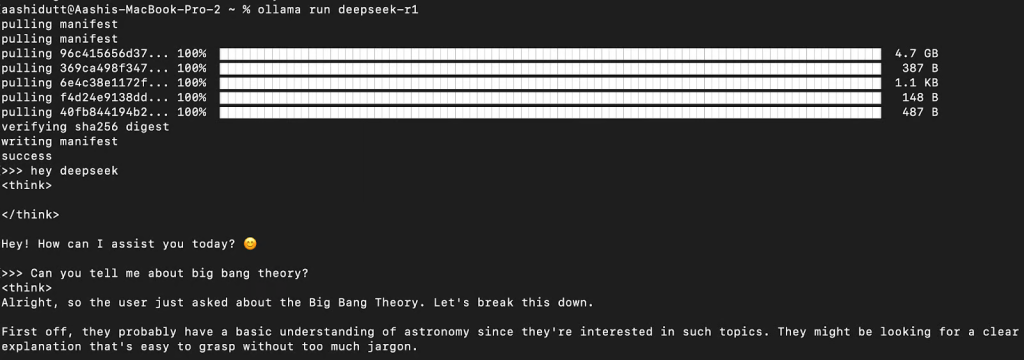
- Open a command prompt and type
ollama run <model_name>(replace with your chosen model, such as “llama3.3”, “mistral” or “deepseek-v3”) - Wait for the download and installation to complete, tt takes a long time to load due to the models are quite large in size.
- When you see
success and >>>, enter your prompt to interact with the AI
Building a Custom Chatbot
With your local model running, you can create a simple chatbot application using Python:
Step 1: Install Python
Download a stable Python version (avoid the newest release for compatibility). During installation, enable administrator privileges and add Python to your system PATH.
Step 2: Install the Ollama Package
Open a terminal in your project directory and run:
pip install ollamaStep 3: Create Your Python Chatbot
Create a new file with the following code:
from ollama import chat

def stream_response(user_input):
    """Stream the response from the chat model and display it in the CLI."""
    try:
        print("\nAI: ", end="", flush=True)
        stream = chat(model='llama3.3', messages=[{'role': 'user', 'content': user_input}], stream=True)
        for chunk in stream:
            content = chunk['message']['content']
            print(content, end='', flush=True)
        print()
    except Exception as e:
        print(f"\nError: {str(e)}")

def main():
    print("Welcome to AI Chatbot! Type 'exit' to quit.\n")
    while True:
        user_input = input("You: ")
        if user_input.lower() in {"exit", "quit"}:
            print("Goodbye!")
            break
        stream_response(user_input)

if __name__ == "__main__":
    main()
This code:
- Imports the chat functionality from Ollama
- Creates a function to stream responses in real-time
- Establishes an interactive loop for conversation
- Provides an exit command to terminate the program
Step 4: Run Your Chatbot
Execute your script with python filename.py and start interacting with your AI. Type “exit” to close the application when finished.
For more advanced implementations, consult the Ollama documentation for JavaScript and other language integrations.
Customizing Through Fine-Tuning
Fine-tuning adapts pre-trained models to specific use cases by additional training on specialized datasets. This process requires:
- A baseline model (Llama, Mistral, or Falcon recommended)
- High-quality, domain-relevant training data
- Sufficient computational resources
- Fine-tuning tools like Unsloth
Advantages of Self-Hosting
- Enhanced privacy with complete data control
- Reduced expenses compared to subscription APIs
- Customization options through fine-tuning
- Potentially faster response times
When Cloud Might Be Better
Self-hosting may not be ideal if:
- Your hardware doesn’t meet minimum requirements
- You lack technical expertise for setup and troubleshooting
- You need continuous 24/7 availability
- You require immediate access to the most advanced models
Final Thoughts
Deploying LLMs on your own infrastructure offers significant benefits for those prioritizing data security, cost-effectiveness, and customization. User-friendly tools like Ollama have made this process more accessible than ever.
Before choosing this path, carefully evaluate your technical capabilities and hardware resources. For some applications, cloud-based options might still provide the best balance of features and convenience.