Kling AI is an artificial intelligence (AI) tool designed to help users quickly and easily transform creative ideas into professional-quality videos. In this article, MiniToolAI Blog will walk you through how to use Kling AI to create videos and images from text prompts. Let’s dive in!
1. What Is Kling AI?
Kling AI is a powerful AI-driven platform that allows users to generate images and videos from text descriptions. By analyzing and processing the provided input, Kling AI creates scenes and movements that align with the content you describe.
Beyond video creation, Kling AI can animate still photos, bringing them to life with dynamic motion. The platform also offers a range of impressive features, including color adjustment, editing tools, special effects, the ability to create two-minute videos at 1080p/30fps quality, and 3D face and body reconstruction. Additionally, Kling AI supports multiple output formats, making it easy to download or share your creations across various platforms.
Key Features of Kling AI
Like other advanced AI platforms, Kling AI offers cutting-edge features that empower users to unleash their creativity, whether for work, study, or personal projects. Here’s a closer look at what makes Kling AI stand out:
One of Kling AI’s signature features is its ability to smoothly and accurately convert text into videos or images. Additionally, it allows users to transform still photos into dynamic, lifelike video clips with just a simple command.
To help users craft even more unique videos, Kling AI comes equipped with AI-powered video editing tools. These allow you to add effects, adjust colors, modify lighting, and perform seamless video cuts—all within the platform.
Another major highlight is Kling AI’s capacity to produce high-quality, longer videos. Users can create cinematic videos up to 2 minutes long, rendered in 1080p resolution at 30 frames per second. Advanced 3D face and body reconstruction technology ensures the generated videos look impressively natural and professional.
Kling AI also excels at replicating intricate real-world physics and complex motion with stunning accuracy. Every detail is recreated vividly, making it an ideal tool for both professional projects and creative content production.
2. How to Create a Kling AI Account
To start generating videos or images from text prompts, you’ll first need to sign up for a Kling AI account. Here’s a simple step-by-step guide:
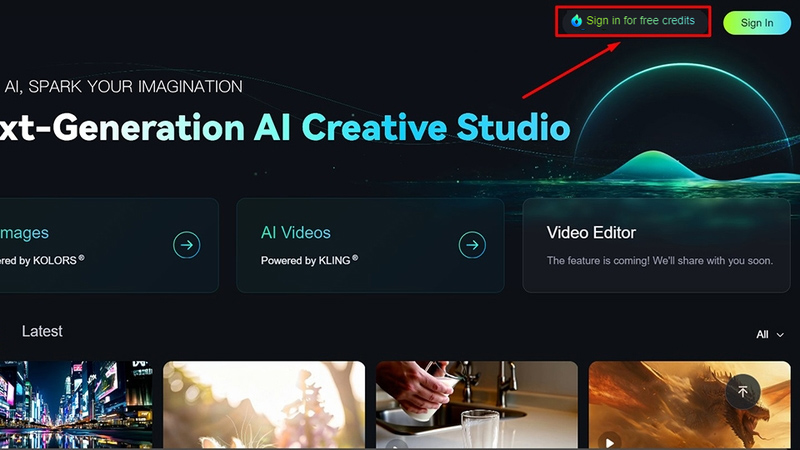
Step 1: Visit Kling AI’s website at https://klingai.com/ and click on Sign in for free credits located in the upper-right corner.
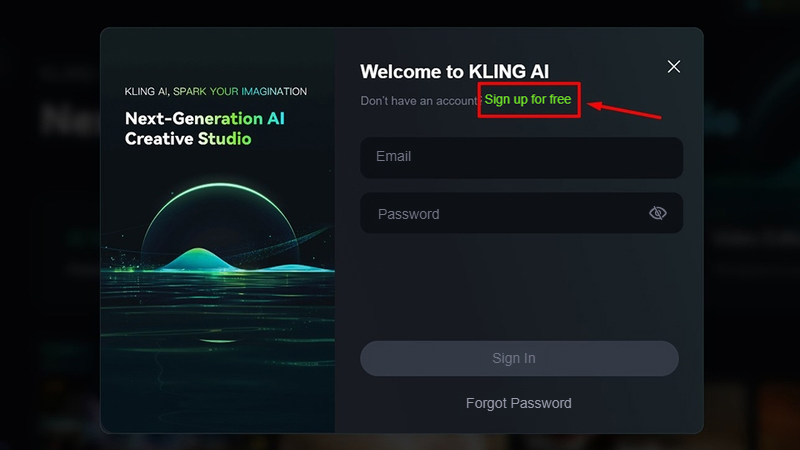
Step 2: Select Sign up for free to begin the registration process.
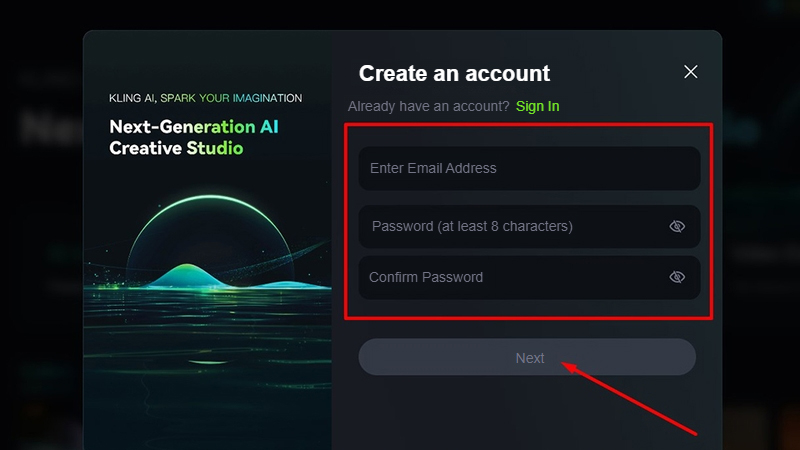
Step 3: Fill in the required fields with your email address, create a password, and confirm your password. Click Next to continue.
Step 4: Complete the image-based CAPTCHA to verify your registration.
Step 5: Check your email inbox for a verification code sent by the system.
Step 6: Enter the verification code into the provided field and click Sign in to complete your account setup.
After registration, you’ll receive a number of free credits, allowing you to explore and use the platform for up to 24 hours.
3. How to Create Videos and Images with Kling AI
Kling AI makes it easy for users to create stunning visuals from simple text prompts. Follow these straightforward instructions to get started:
Creating Images with Kling AI
Generating images using Kling AI is a seamless process. Once logged in, follow these steps:
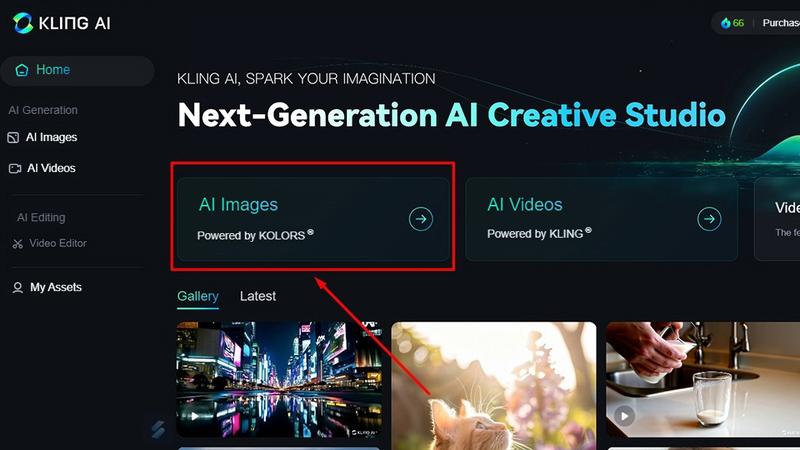
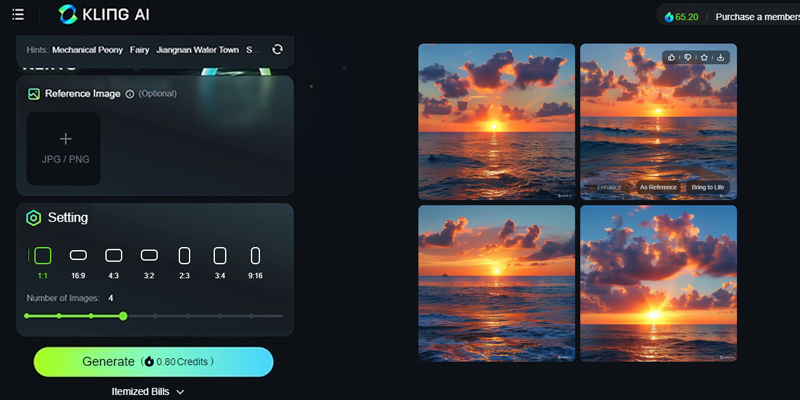
Step 1: From the homepage, select AI Images.
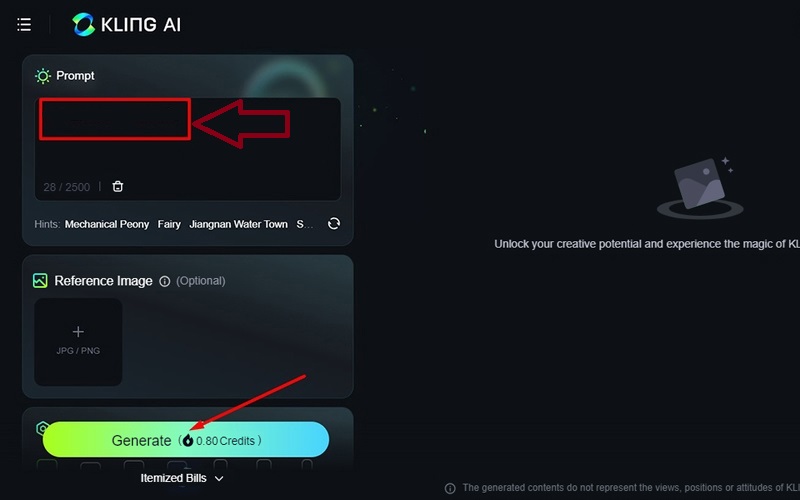
Step 2: Enter your image description into the Prompt field. Choose your preferred image format (JPG/PNG) and aspect ratio, then click Generate.
Step 3: Once the generation process is complete, Kling AI will provide four image options. Choose your favorite and download it to your device.
Creating Videos with Kling AI
The process for creating videos is just as user-friendly:
Step 1: Return to the Kling AI homepage and click on AI Videos.

Step 2: Enter your video description into the Prompt field. Adjust settings such as creativity level, video length, mode, and aspect ratio under the Settings section, then click Generate.
Step 3: Video creation takes a bit longer than images, so be patient as Kling AI processes your request. Once finished, download your completed video.
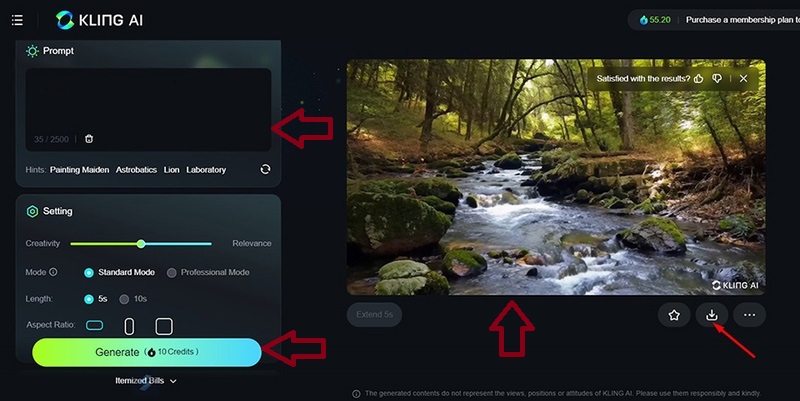
If you’re not satisfied with the result, feel free to modify your description and create a new video.
How to Download Kling AI on Your Phone
While Kling AI is typically best experienced on a computer—thanks to a larger interface and more precise detail handling—you can also use it conveniently on your smartphone.
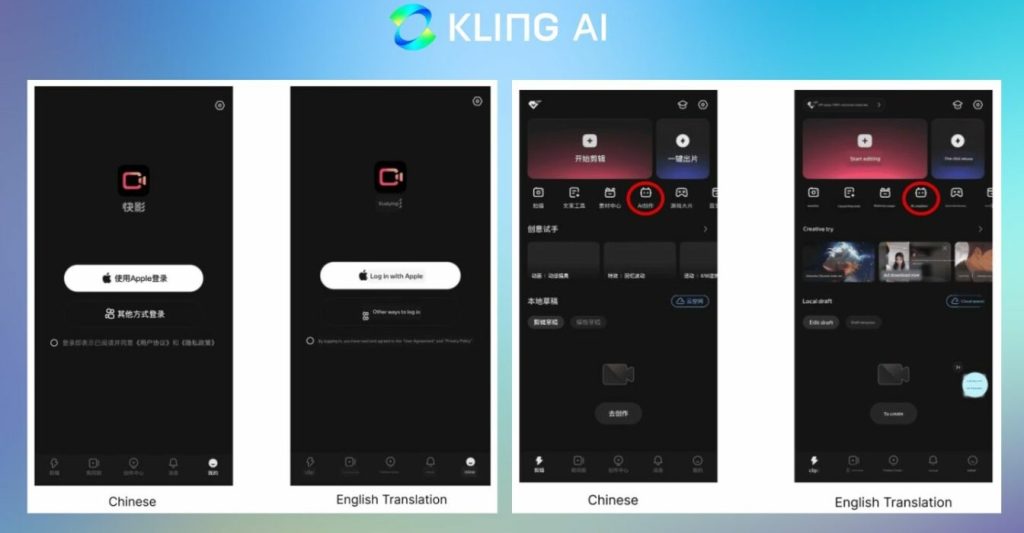
Here’s how to get started:
Step 1: Open the Google Play Store (for Android) or App Store (for iOS). Search for “Kwaiying” or “KwaiCut.” Download the app, then register and create a new account. The app’s interface is in Chinese, but you can follow visual guides from Sforum to navigate easily.
Step 2: In the left-hand menu, tap on “Clip,” then look for the “AI Creation” option.
Step 3: Click the panda icon and follow the instructions to sign up for free access to Kling AI. You’ll need to select your user type and intended use, then provide a Chinese mobile phone number and Kuaishou ID.
Note: Currently, Kling AI only accepts Chinese phone numbers for registration.
Frequently Asked Questions About Kling AI
Is Kling AI completely free?
Kling AI currently offers free access, but it requires registration via email or a Chinese phone number.
The platform can generate a wide range of video types, including cinematic-quality videos, complex motion sequences, social media clips, realistic physics-based videos, conceptual visuals, digital videos, and animations.
Is there a limit to how many images or videos I can create?
Each account is allowed to create up to 180 videos per month. If you need to produce more, you can upgrade to a paid plan.
How does Kling AI compare to Sora?
While OpenAI’s Sora has been highly anticipated, Kling AI by Kuaishou has already taken the world by surprise. In many ways, they are comparable, but Kling AI offers several advantages: it supports longer video creation, handles motion more realistically, follows detailed descriptions more closely, and enables multi-angle scene generation. Moreover, Kling AI is already available for early access sign-ups, whereas Sora has yet to be widely released.
MiniToolAI Blog has now guided you through the basics of using Kling AI to turn text into videos and images. Good luck, and if you found this article helpful, don’t forget to share it with others!